

Overview
What the Builder does
The Builder is EVAL's visual editor for creating clinical evaluations. It's where you turn a paper-based questionnaire, screening tool, or assessment protocol into an interactive digital evaluation that your patients or practitioners can complete on any device.
You build evaluations by combining four core elements: sections that organize content, questions that capture data, results that calculate scores and display guidance, and visibility rules that make your evaluation adaptive — showing or hiding content based on how questions are answered.
How to open the Builder
There are three ways to reach the Builder:
- From an evaluation's Actions menu. Open any evaluation and click Actions → Builder. If you own the evaluation or have edit permissions, this takes you directly into the Builder.
- From the Library. Navigate to Private Library or Shared Library in the sidebar, click an evaluation card, then choose Builder from the Actions menu.
- Create a new evaluation. Click + New Eval in your Library. EVAL opens the Builder in new-evaluation mode, where the AI Builder can help you generate a starting point.
The Builder layout
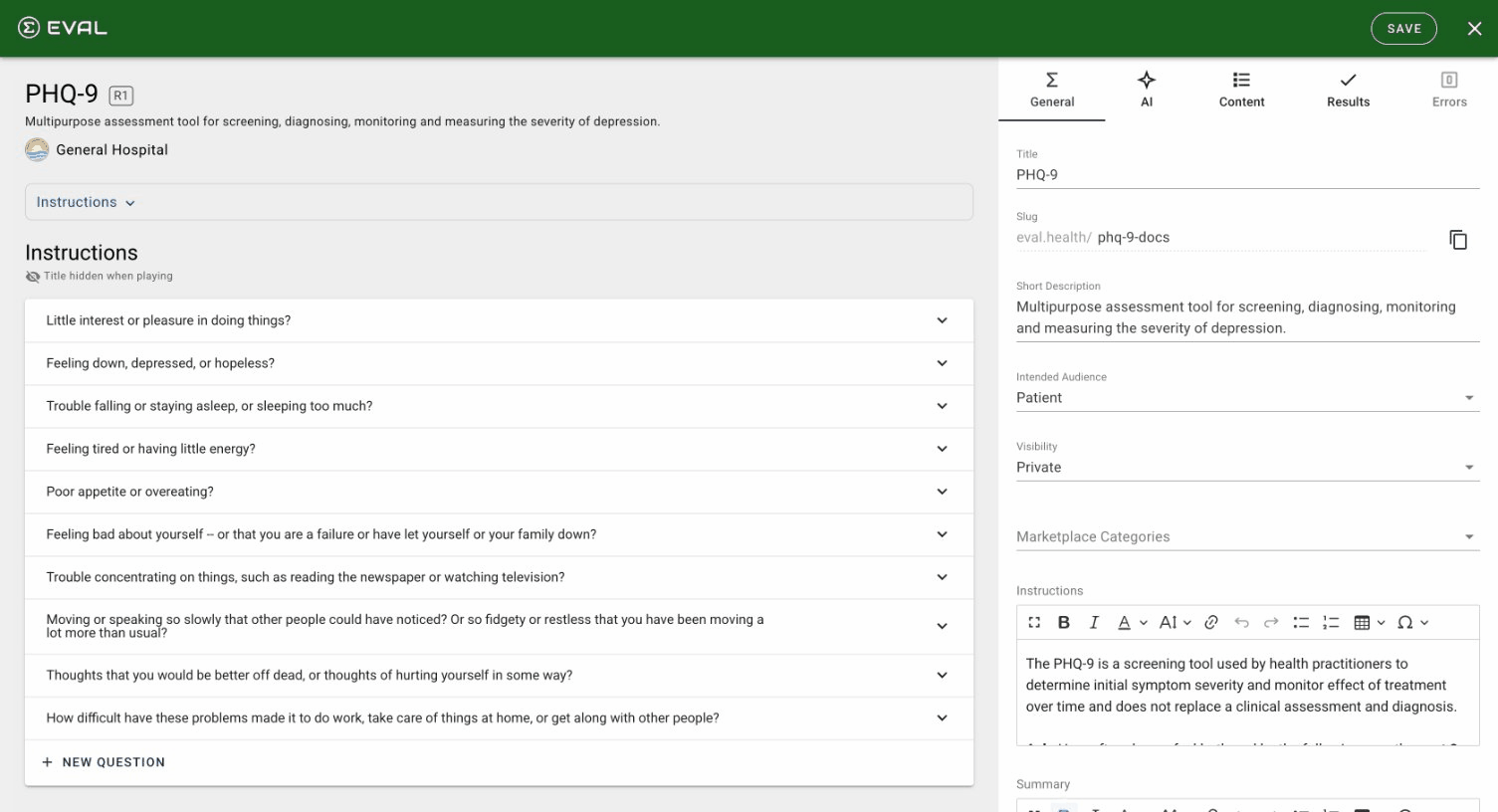
The Builder uses a two-pane layout. The outline pane on the left shows your evaluation's structure — sections with their questions, and a Results area at the bottom. The detail pane on the right is where you edit whatever you've selected.
At the top of the detail pane, tabs organize the builder's tools:
- General — Your evaluation's profile: title, description, slug, audience, and metadata like literature references and attributions.
- AI — AI-powered tools to help generate and refine your evaluation content.
- Content — Where you build your evaluation's sections, questions, and visibility rules.
- Results — Define formula calculations and information displays that appear after completion.
- Errors — Validation issues that need attention before publishing. This tab only appears in edit mode.
Viewing vs. editing
When you first open the Builder for an existing evaluation, you're in view mode — you can browse the structure and settings, but nothing is editable. Click Edit in the top-right corner to switch to edit mode, which loads a draft revision you can modify.
In edit mode, the header shows a Draft badge and two action buttons: Save (to save your changes without publishing) and Publish (to save and release a new revision). Click the X button to close the Builder and return to the evaluation.
The building workflow
A typical workflow for creating an evaluation follows this progression:
- Set up your profile. On the General tab, give your evaluation a title, description, and configure who it's intended for.
- Build your content. On the Content tab, create sections and add questions to capture the data you need.
- Define scoring. On the Results tab, create formula results that calculate clinical scores and information results that display guidance.
- Add conditions. Use visibility rules to show or hide sections, questions, and results based on how the evaluation is answered.
- Review and publish. Check the Errors tab for validation issues, test your evaluation with the Play button, and publish when ready.
Getting started
General tab
Content tab
Results and scoring
Formula editor
Error resolution
Folder permissions
Control who can view and edit shared folders in your EVAL Library with visibility settings and user-level role assignments.
General tab
Configure your evaluation's profile on the General tab — set the title, description, audience, slug, and add literature references and attributions.